 FarryOn
All settings
What every setting does. Open it from the menu ⋯ → Settings (the gear), or tap your initial. Most pages have a Save & reconnect button at the bottom — the change takes effect when you tap it.
1Assistant
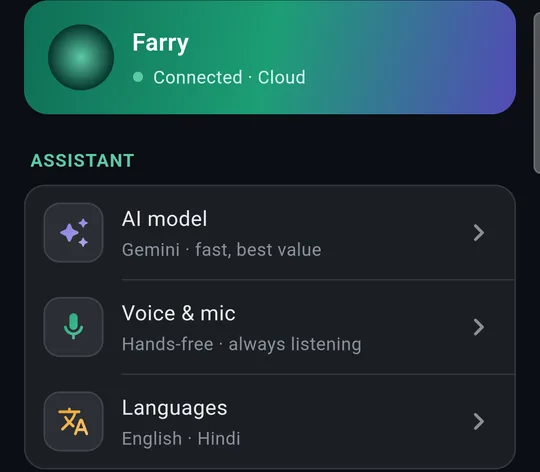
The card at the top says whether Farry is Connected and to which server.
Under Assistant: AI model, Voice & mic, and Languages.
AI model
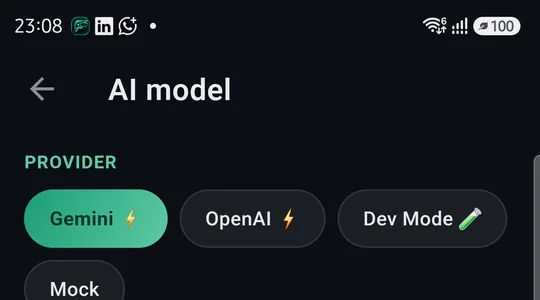
- Gemini — fast, smooth voice and vision, best value. Recommended.
- OpenAI — also fast; a premium alternative.
The screenshot is from an admin account; yours shows only Gemini and OpenAI.
Voice & mic
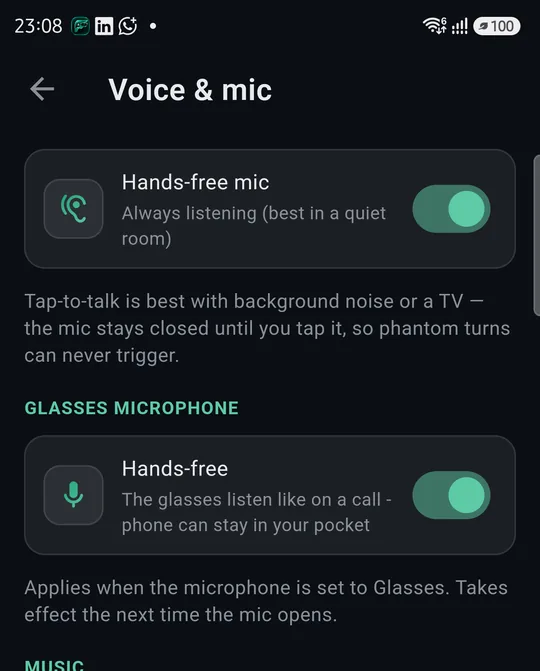
- Hands-free mic — on: Farry is always listening (best in a quiet room). Off: tap-to-talk — the mic stays closed until you tap it, so a TV or background noise can't trigger her.
- Glasses microphone · Hands-free — the glasses listen like a phone call; the phone can stay in your pocket. Applies when the microphone is set to Glasses.
- Lower music while talking — asks your music app to turn down while you speak, like a navigation prompt does.
Languages
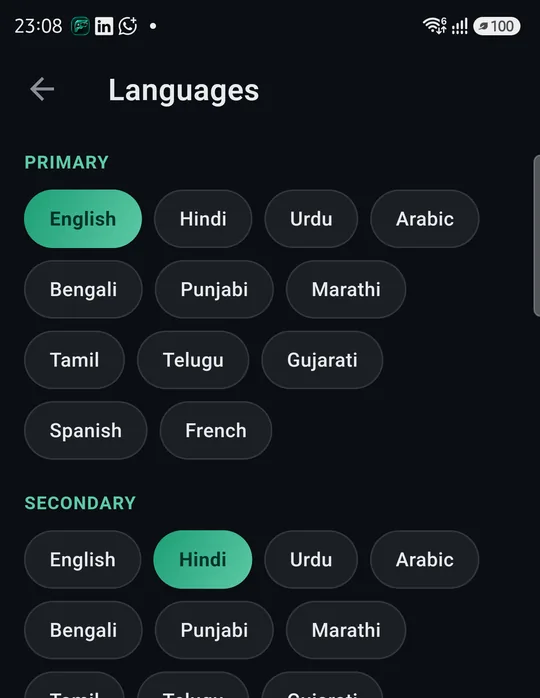
Farry answers in whatever language you speak. These two only decide the tricky cases — mixed or very short sentences:
- Primary — used first, and for reminders and when Farry speaks on her own.
- Secondary — your other everyday language.
Applies from the next session.
2Devices
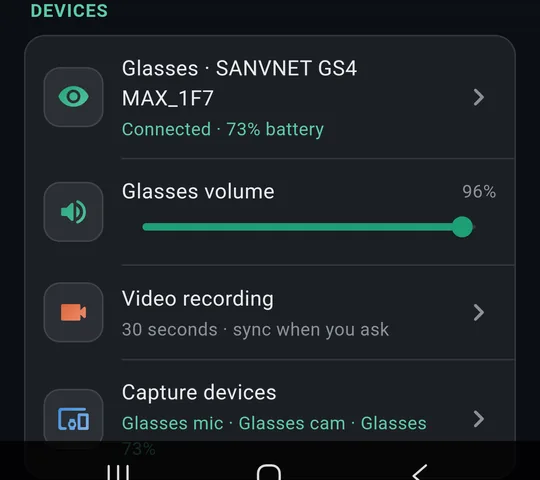
- Glasses — connect, restart, reset, versions (Part 2, step 3).
- Glasses volume — how loud Farry is in your ears. Slide it.
- Video recording — length and copying to the phone (Part 2, step 6).
- Capture devices — which microphone and camera Farry uses (Part 2, step 4).
3Connections
Web search
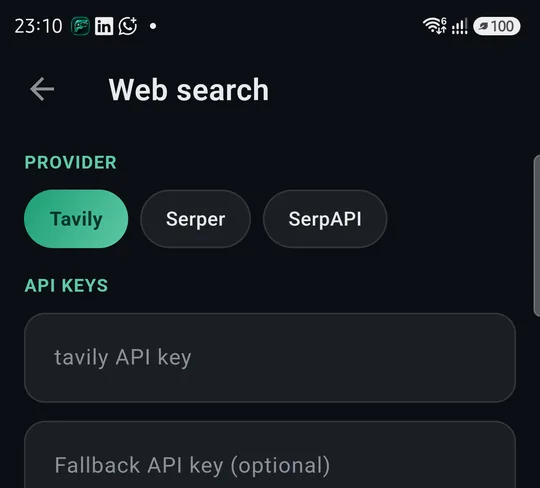
You don't need to set anything here. Web search works out of the box — just ask Farry (“What's the weather in Dubai tomorrow?”).
Only if you have your own account with a search provider (Tavily, Serper or SerpAPI) can you choose it and paste your key; FarryOn then uses your key instead. Leave the boxes empty otherwise.
Server
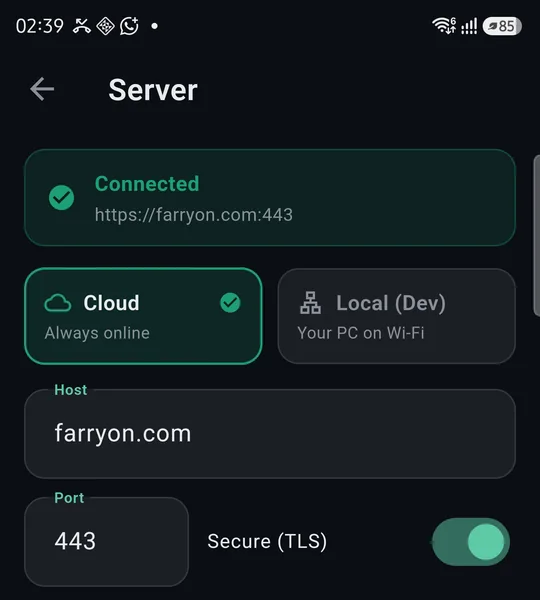
Keep it on Cloud — Connected · https://farryon.com:443 with Secure (TLS) on.
4Your stuff and account
- Notes, Reminders, Conversations — Part 6.
- Your name and email — the account you're signed in with.
- Subscription — Part 7.
- Sign out — signs out on this phone. Your notes, reminders and plan stay with your account.
- Privacy — keep or stop your conversation history, delete it, or delete your account — Part 11.
5App update, debug logs, version
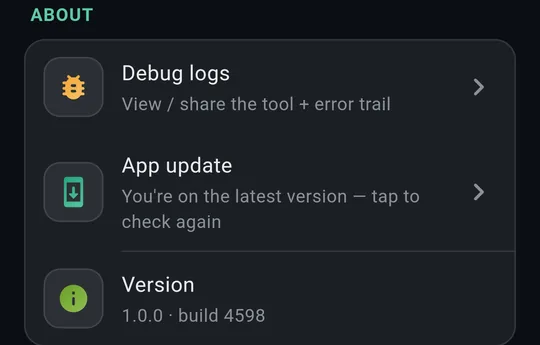
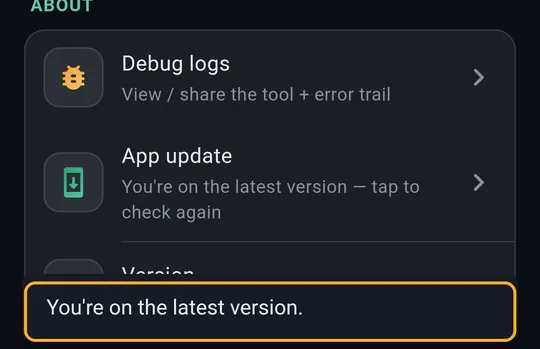
- App update — tap to check for a newer version. When one is out, FarryOn also tells you when it opens; tap Update, and install it the same way as the first time (Part 1, step 2).
- Version — the number to tell support, e.g. 1.0.0 · build 4598.
- Debug logs — a record of what the app did, for support.
- Show tips again — replays the quick tours of the home screen, Translation, Finder, Telegram and email setup.
Sending debug logs to support
If support asks for logs, open Debug logs and use the buttons at the top:

Copy · Share (send it to us on WhatsApp or email) · Delete (clear the log).
?If something goes wrong
| What you see | What to do |
|---|---|
| Top card says not connected | Check your internet. Settings → Server should be Cloud. |
| A change didn't apply | Tap Save & reconnect at the bottom of that page. |
| Farry answers strangely or not at all | Settings → AI model → choose Gemini, then Save & reconnect. |
| Farry hears the TV | Voice & mic → turn Hands-free mic off (tap-to-talk). |
Still stuck? Message us on WhatsApp — a real person answers.
Sat–Thu, 10:00–19:00 GST